Suche // Search:

Posts mit dem Label Bugfix werden angezeigt. Alle Posts anzeigen

14.09.2016

Der Selbermachen-Bugfix 5
//
Do-It-Yourself bugfix 5

Falls Sie mal eine andere Version von Designer installieren wollen oder müssen, werden Sie meist dazu gezwungen sein, die bestehenden Version zu deinstallieren. Hierbei kann es aber zu Problemen kommen.

Der Deinstallationsvorgang bricht eventuell mit folgenden Fehler ab:
„Fehler 1722. Es liegt ein dieses Windows Installer-Paket betreffendes Problem vor. Ein Programm, das im Rahmen der Installation ausgeführt wurde, wurde nicht erfolgreich abgeschlossen. Wenden Sie sich an das Supportpersonal oder den Hersteller des Pakets. Aktion: FileSystemBrowserDLLunregister, Pfad: C:\WINDOWS\SysWOW64\, Befehl: regsvr32.exe /u /s "C:\Program Files (x86)\Adobe\Adobe LiveCycle Designer ES3\FileSystemBrowser.dll"“
„0x8002801c“
Das Problem ist, dass die betreffende DLL aus irgendeinem Grund nicht mehr in der Registry registriert ist und die Deinstallationsroutine somit das Problem hat, etwas löschen zu wollen, das gar nicht da ist. 

Die folgende Lösung sollte für alle Version von LiveCycle Designer und AEM Forms Designer anwendbar sind.


If you want or have to install another version of Designer you propably will be forced to uninstall the current version first. You may encounter some difficulties when doing this.

The deinstallation possibly interrupts with the following error:
„Error 1722. There is a Problem with the Windows Installer Package. A program run as part of the setup did not finish as expected. Contact your support personnel or package vendor.  Action: FileSystemBrowserDLLunregister, Path: C:\WINDOWS\SysWOW64\, Command: regsvr32.exe /u / s "C:\Program files (x86)\Adobe\Adobe LiveCycle Designer ES3\FileSystemBrowser.dll"“
„0x8002801c“

The problem is that the DLL in question is not registered in the registy for some reason. So, the uninstall process now having the problem to delete something that is not there.

The following solution should work for every version of LiveCycle Designer and AEM Forms Designer.


Selbermachen-Bugfix – Schritt für Schritt
//
Do-It-Yourself Bugfix – Step by Step

Schritt 1 – Öffnen Sie den Explorer und gehen Sie in das Installationsverzeichnis Ihres Designer z.B. "C:\Program Files (x86)\Adobe\Adobe LiveCycle Designer ES3"
//
Step 1 – Open the Explorer and go to the Designers installation directory like "C:\Program Files (x86)\Adobe\Adobe LiveCycle Designer ES3"


Schritt 2 – Kopieren Sie die in der Fehlermeldung genannte Datei z.B. "FileSystemBrowser.dll".
//
Step 2 – Copy the file from error massage like 
"FileSystemBrowser.dll".


Schritt 3 – Wechseln Sie ins Verzeichnis "C:\Windows\SysWOW64" (64 Bit-Windows) oder "C:\Windows\System32" (32 Bit-Windows) und fügen Sie die kopierte DLL hier ein.
//
Step 3 – Switch to the directory "C:\Windows\SysWOW64" (64 Bit-Windows) or "C:\Windows\System32" (32 Bit-Windows) and paste the copied DLL there.


Schritt 4 – Starten Sie die Eingabeaufforderung als Administrator und wechseln Sie in das Verzeichnis "C:\Windows\SysWOW64" (64 Bit-Windows) oder "C:\Windows\System32" (32 Bit-Windows).
//
Step 4 – Run the command prompt as adminstrator and switch to the directory 
"C:\Windows\SysWOW64" (64 Bit-Windows) or "C:\Windows\System32" (32 Bit-Windows). 


Schritt 5 – Geben Sie den Befehl "regsvr32.exe FileSystemBrowser.dll" (ohne Anführungszeichen) ein und drücken Sie Enter, um die fehlende DLL zu registrieren. 
//
Step 5 – Enter the command 
"regsvr32.exe FileSystemBrowser.dll" (without quotes) and press Enter to register the missing DDL.


Schritt 6 – Versuchen Sie die Deinstallation von Designer erneut.
//
Step 6 – Retry to uninstall Designer.


20.10.2014

Der Selbermachen-Bugfix 4
//
Do-It-Yourself bugfix 4

Designer bietet ein Werkzeug zum Umwandeln von Word-Dateien in XFA-Formulare — die ConvertWord.exe.
Diese wird automatisch aufgerufen, wenn man mit Designer einer Datei mit folgenden Dateiendungen *.doc, *.docx, *.docm, *.dot oder *.rtf öffnet.

Unter Umständen schlägt die Umwandlung aber immer mit den Umwandlungsfehler: 1 fehl.
Der Rest der Fehlermeldung ist nicht weiter hilfreich, da es sich hier nur eine Zusammenfassung der Konvertierungseinstellungen handelt.

Was also ist hier das Problem?
Nun, in den Dateiimportoptionen gibt es auch eine Dropdown-Liste zum Festlegen ob und wo ein Log der Konvertierung angelegt werden soll.
Das ist die Wurzel allen Übels!
Hat man hier "Protokolldatei erstellen in Designer-Verzeichnis\Log\ConvertWord.log"oder Protokolldatei erstellen in Designer-Verzeichnis\Log\Eingabedatei.log" ausgewählt, hat man das Problem auf ein Verzeichnis zu verweisen, dass nicht existiert.
Standardmäßig existiert im Programmordner von Designer nämlich kein Ordner "Log", daher scheitert der Konvertierungsvorgang.

Konvertierungseinstellungen mit Protokollierung in Designers Programmordner

Umwandlungsfehler: 1
Wenn man nichts protokolliert, oder stattdessen auf das Temp-Verzeichnis verweist, kommt keine Fehlermeldung.


Designer comes with a tool to convert Word files into XFA forms — the ConvertWord.exe.
It's loaded automatically when you open a file with one of the following file extensions: *.doc, *.docx, *.docm, *.dot or *.rtf.

There are situations the conversion fails immediately with Conversion Error:1.
The rest of the message doesn't make cler what's the problem as it only contains a summary of the settings of the conversion.

So, what's the problem.
Well, in the settings dialog there is a drop down list where you set if and where a log file of the conversion will be created.
This is the root of all evil!
When you select either "Log to Designer directory\Log\ConvertWord.log" or "Log to Designer directory\Log\inputfile.log" you'll run into the problem that this points to a directory that does not exist.
By default there is no folder Log in Designers programm folder, so the conversion fails.

Conversion Settings with logging set to Designers programm folder


Conversion Error: 1

If you select the Temp directory for logging or disable it, there is no such error!


Selbermachen-Bugfix – Schritt für Schritt
//
Do-It-Yourself Bugfix – Step by Step


Schritt 1 – Öffnen Sie den Explorer und gehen Sie in das Installationsverzeichnis Ihres Designer z.B. "C:\Program Files (x86)\Adobe\Adobe LiveCycle Designer ES3"
//
Step 1 – Open the Explorer and go to the Designers installation directory like "C:\Program Files (x86)\Adobe\Adobe LiveCycle Designer ES3"


Schritt 2 – Erstellen Sie einen neuen Ordner "Log"
//
Step 2 – Create a new folder named "Log"

Log-Ordner in Designers Programmordner
//
Log folder in Designers programm folder

Schritt 3 – Führen Sie die Dateikonvertierung erneut aus. 
Diese läuft nun durch und erstellt aber keine Log-Datei im neu erstellten Ordner.
Wenn Sie die Logdatei wirklich benötigen, müssen Sie Designer zusätzlich mit Administratorrechten ausführen!
//
Step 3 – Start the file conversion again. 
It now will be processed correctly but it will not create a log file in the newly created folder.
If you really need the log file you will have to run Designer with administrator rights too.


Logdatei der Konvertierung
//
Log file from conversion


03.02.2014

Der Selbermachen-Bugfix 3
//
Do-It-Yourself bugfix 3

Neulich stieß ich auch das Problem, da ich im Designer keine Bilder mehr durch Doppelklicken eines Bildfeldes hinzufügen konnte.
Alles was ich zu Gesicht bekam, war die barsche Meldung: "Auf Ihrem System wurde kein Bilddatei-Browser gefunden.".

In den Optionen des Designers offenbarte sich das Problem, denn für die Dateiverwaltung war kein Dateibrowser vorhanden und auch nicht auswählbar.
Ursache ist das Fehlen eines Registrierungseintrages für den Dateibrowser den Designer mitbringt.

Abhilfe schaft hier ein kurzer Ausflug in die Windows Kommandozeile.


I recently got a problem in Designer where I wasn't able to add images by double clicking an image field.
All a got was a gruff message saying "Error: Unable to locate an image file browser on your system".

In Designers options dialog showed the dilemma. There wasn't a default file browser available and also not selectable.
The reason is a missing registry entry for the file browser that comes with Designer.

You can fix this with a short excursion into the Windows command line.


Bug – Fehlender Bilddatei-Browser
//
Bug – Missing image file browser


Fehlermeldung - Fehlender Bilddatei-Browser
//
Error - Missing image file browser
Fehlender Dateibrowser im Optionen-Dialog
//
Missing file browser in the options dialog

Selbermachen-Bugfix – Schritt für Schritt
//
Do-It-Yourself Bugfix – Step by Step


Schritt 1 – Öffnen Sie die Kommandozeile (cmd) mit Administrator-Rechten
//
Step 1 – Open the command line (cmd) with admin rights


Schritt 2 – Wechseln Sie mit "cd" das Installationsverzeichnis Ihres Designer z.B. "cd C:\Program Files (x86)\Adobe\Adobe LiveCycle Designer ES3"
//
Step 2 – Use "cd" to go to the Designers installation directory like "cd C:\Program Files (x86)\Adobe\Adobe LiveCycle Designer ES3"


Schritt 3 – Registrieren Sie den Dateibrowser mit dem Befehl "regsvr32.exe FileSystemBrowser.dll" neu.
//
Step 3 – Register the file browser with the command "regsvr32.exe FileSystemBrowser.dll".
Glückwunsch - Sie haben den Dateibrowser erfolgreich registriert
//
Congratulations - You successfully registered the file browser

Schritt 4 – Starten Sie Designer neu und prüfen Sie, ob der Dateibrowser unter "Extras" > "Optionen" wieder verfügbar ist.
//
Step 4 – Restart Designer and under "Tools" > "Options" check if the file browser is available again.


02.10.2013

LiveCycle ES4 Service Pack 1

Das erste Servicepack für LiveCycle ES4 wurde nun veröffentlicht.
Für Designer bringt es genau eine neue Funktion und ein paar Bugfixes.

Das Problem mit dem Dateifilter, das ich vormals beschrieben hatte ist behoben – na endlich!
Ein paar andere Probleme bestehen aber weiterhin.
Versuchen Sie mal ein bestehendes PDF in Designer zu importieren und mit der Zielversion "Acrobat und Adobe Reader 11.0 oder höher" abzuspeichern – Na? Genau, geht nicht!
Des Weiteren funktioniert der Aufruf der Makro-Methode showXDPinAcrobat() nicht.
Designer erzeugt zwar brav die XPD-Datei LiveCycleDesignerScriptMergeTemplate.xdp im Tempverzeichnis C:\Users\%user%\AppData\Local\Temp aber diese wird dann nicht automatisch mit Acrobat geöffnet.
Man muss die Datei also manuell mit Acrobat öffnen.

Neu hinzugekommen ist die Möglichkeit, den Dokumententitel anstelle des Dateinamens in der Kopfzeile des PDF-Viewers anzeigen zu lassen.
Diesen Hinweis findet man aber nur in der englischen Hilfe von Designer.
Dafür muss man das Tag <?originalXFAVersion http://www.xfa.org/schema/xfa-template/3.3/ DisplayDocTitle:1?> in die XML-Quelle einfügen.
Wo das Tag hingehört, darüber schweigt sich die Hilfe übrigens aus, genauso über die erforderliche Zielversion.
Jedenfalls funktioniert es nur, wenn man das Tag innerhalb des <template>-Tags plaziert und das Formular als statische PDF abspeichert.


Service Pack 1 für LiveCycle ES4 is here.
For Designer it means just one new feature and a few bug fixes.

Well, there was a problem with the file filter in the open dialog of the german Designer that is now fixed.
But there are still a few more unfixed bugs.
Have you ever tried to import an existing PDF into Designer an then save it with the target version "Acrobat and Adobe Reader 11. or higher"? Well? You see it's not possible!
There is also a bug with the macro API method showXDPinAcrobat().
Designer is still creating the XDP file named LiveCycleDesignerScriptMergeTemplate.xdp in the users temp folder C:\Users\%user%\AppData\Local\Temp but this file never gets opened automatically with Acrobat.
You have to open it manually.

New is the option to add the document title to the PDF-viewer title bar instead of the file name.
Therefore you have to add the tag <?originalXFAVersion http://www.xfa.org/schema/xfa-template/3.3/ DisplayDocTitle:1?> into the XML source of your form.
There is no word about where it has to be placed exactly and nothing about other neccessary settings like target version.
Anyway, it works but only if you put the tag within the <template> tag and save the form as static PDF.


Download Service Pack 1
https://www.adobe.com/cfusion/entitlement/index.cfm?e=lces4_sp1

Versionshinweise – LiveCycle ES4 Servicepack 1
//
Release Notes – LiveCycle ES4 Service Pack 1
http://wwwimages.adobe.com/www.adobe.com/content/dam/Adobe/en/products/livecycle/pdfs/sp_download_readme.pdf

15.04.2013

Der Selbermachen-Bugfix 2
//
Do-It-Yourself bugfix 2

LiveCycle Designer ES3, Designer ES4 als auch AEM Forms Designer 6.1 haben in der deutschen Version einen kleinen aber nervigen Bug im Öffnen-Dialog.
Der Öffnen-Dialog zeigt, solange nach Adobe (LiveCycle) Designer-Dateien (*.pdf, *.xdp) gefiltert wird, keinerlei Dateien an.
Leider ist dieser Filter die Standardauswahl, weshalb man immer erst mühsam klicken muss, um seine Dateien zu sehen.

Leerer Öffnen-Dialog // Empty open dialog

Aber, dieser Bug lässt sich leicht in 5 Minuten selbst beheben.
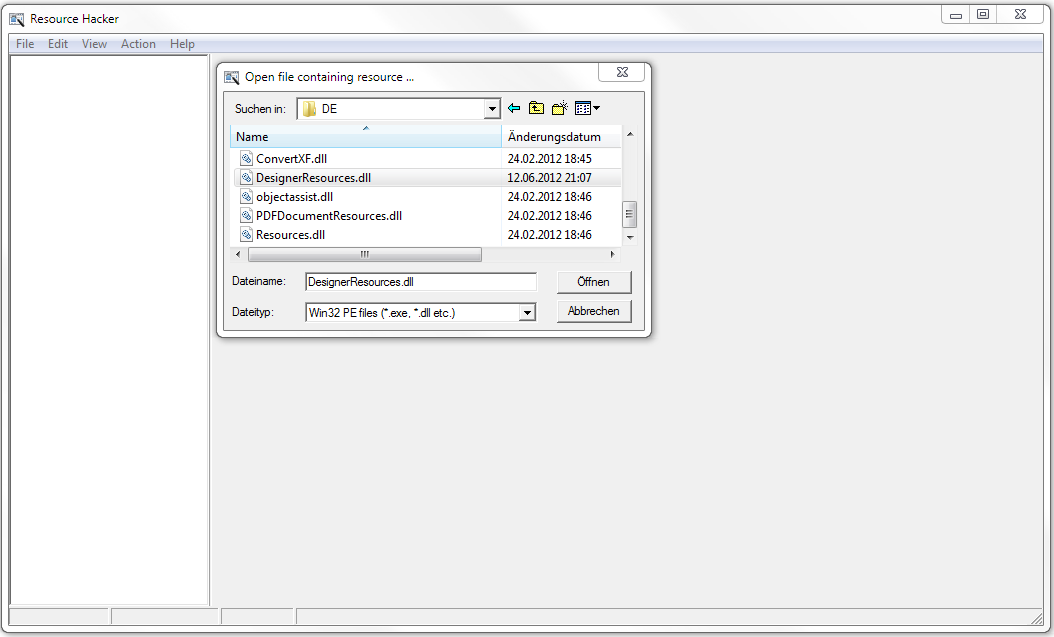
Alles was Sie dafür brauchen ist die Freeware Ressource Hacker.

Hinweis:
Der Bug wird in Designer ES4 mittlerweile durch das Installieren von Servicepack 1 behoben!

1. Öffnen Sie mit Ressource Hacker die Datei DesignerResources.dll aus dem Programm-Ordner Ihres Designer (z.B: C:\Program Files (x86)\Adobe\Adobe LiveCycle Designer ES3\DE oder C:\Program Files (x86)\Adobe\Adobe Experience Manager Forms Designer\DE).

2. Navigieren Sie zum Baum StringTable und dann zur Unterordner 93 und suchen Sie den String mit der Nummer 1484.

3. Ersetzen Sie jeweils das Komma (,) hinter *.pdf durch ein Semikolon (;).


4. Klicken Sie anschließend auf Compile Script und speichern Sie ihre neue DLL-Datei irgendwo ab.


5. Ersetzen Sie die Original-DLL mit ihrer neu erstellten Version und starten Sie Designer neu.
Der Öffnen-Dialog zeigt nun wieder problemlos Dateien an.
Fehlerbereinigter Öffnen-Dialog // Fixed open dialog


This solution is only applicable for the german version of LiveCycle Designer ES3/ES4 and AEM Forms Designer 6.1.
The english version don't has to be fixed, that's why there is no description here.

21.11.2012

LiveCycle ES3 Service Pack 2

Adobe hat das zweite Service Pack (Version 10.0.4) für LiveCycle ES3 veröffentlicht.
Für den Designer bringt es aber kaum Änderungen und der Bug, mit dem Dateifilter im Öffnen-Dialog, der keine PDF-Dateien anzeigt, wenn als Dateityp "Adobe LiveCycle Designer-Dateien (*.pdf, *.xdp)" ausgewählt ist, wird durch das Update auch nicht behoben. 

Update: Der Bug mit dem Dateifilter im Öffnen-Dialog existiert nur in der deutschen Version von Designer.
Ich habe einen Weg gefunden das selbst zu patchen und werde schnellstmöglich hier posten.


Adobe has released the second service pack (version 10.0.4) for LiveCycle ES3.
For Designer this update does not bring much improvments.
It also doesn't fix a bug with the file filter in the open dialog, which does not show PDF files if the filter is set to "Adobe LiveCycle Designer Files (*.pdf, *.xdp)".


Update: The bug with the file filter in the open dialog only existst in the german version of Designer.
I found a way to patch by yourself and will post it asap.

Download Service Pack 2
https://www.adobe.com/cfusion/entitlement/index.cfm?e=lces3_sp2

Versionshinweise - LiveCycle ES3 Service Pack 2
//
Release Note - LiveCycle ES3 Service Pack 2
https://www.adobe.com/products/livecycle/pdfs/lc_es3_sp2_readme.pdf

12.06.2012

LiveCycle ES3 Service Pack 1

Adobe hat das erste Service Pack für LiveCycle ES3 veröffentlicht.
Für den Designer bringt es einige Bugfixes.
Zum Beispiel wird das nervige Problem der deutschen Version behoben, bei dem Designer mit einem Runtime Error abstürzt, wenn man versucht, einen einmal festgelegten Überlaufkopf- oder fußbereich wieder zu ändern.

Die Versionsnummer des Designer ändert sich durch das Service Pack auf 10.0.3.
Theoretisch würde das Update ja für alle vorherigen Versionen (ADEP Designer 10.0.0/10.0.1) gehen, aber dem ist nicht so.
Durch den Namenswechsel von ADEP zurück zu LiveCycle, hat sich beim Designer einiges mehr geändert, sodass der ADEP Designer nach dem Installieren des Service Packs nicht mehr funktioniert.
Das Service Pack funktioniert nur mit dem LiveCycle Designer ES3 (10.0.2).

Wie schon zuvor erwähnt, können Sie Ihre ADEP Lizenz für die Installation des LiveCycle Designer ES3 verwenden.


Adobe has release the first Service Pack for LiveCycle ES3.
It brings a few bugfixes for Designer.
For example for a very nasty bug in the german version that causes Designer to crash every time you try to change the setting of an overflow leader or trailer.

The Service Pack changes Designers version number to 10.0.3.
You might think it will be usable for all pervious versions (ADEP Designer 10.0.0/10.0.1) , but this is not the case.
With the name changing from ADEP to LiveCycle, several different things in Designer have changed, so ADEP Designer won't work anymore if you install the Service Pack over it.
The Service Pack is only suitable for LiveCycle Designer ES3 (10.0.2).

As I mentioned before, you can use your ADEP licence to install LiveCycle Designer ES3.


Fehlerbehebungen bei LiveCycle Designer ES3 für folgendes Problem
//
Bug Fix for following bug in LiveCycle Designer ES3


Änderungen beim Überlaufkopf- oder -fußbereich im deutschen Designer ...
//
Changing the overflow leader or trailer settings in the german Designer ...

... führt in Version 10.0.0, 10.0.1 und 10.0.2 zum Absturz.
//
... causes an app crash in version 10.0.0, 10.0.1 and 10.0.2.


Download - LiveCycle ES3 Service Pack 1
https://www.adobe.com/cfusion/entitlement/index.cfm?e=lces3_sp1


25.10.2011

Der Selbermachen-Bugfix
//
Do-It-Yourself bugfix

Heute mal was ganz aus der Reihe.
Seit Ewigkeiten schon nervt mich diese Meldung in der JavaScript-Konsole bei jedem Öffnen meiner Formulare in Acrobat / Reader, die ich mit Designer erstellt habe:

missing ; before statement
8:Document-Level:!ADBE::0100_VersChkStrings

Auch der neue ADEP Designer verursacht dieses Problem ... arrg.

Eine Recherche mit dem PDFStreamDumper brachte mich recht schnell auf die Ursache.
Designer bettet beim Speichern als PDF-Datei immer einige Dokument-Level-Skripte in JavaScript mit ein, die beim Öffnen der Formulare ausgeführt werden.
Ist zum Beispiel die Zielversion des Formulars höher als die des PDF-Viewers, soll eine entsprechende Meldung aufploppen, um den Benutzer zu informieren.
Das klappt wunderbar, nur nicht mit dem deutschen Designer, da dort einige Strings in dem JavaScript-Skripten falsch geschrieben sind und dadurch beim Öffnen des Formulars scheitern.
Wenn Sie die englische Version des Designer haben, kennen Sie das Problem zum Glück nicht.

Nun kann man theoretisch mit dem PDFStreamDumper den Fehler in den Formularen ausmerzen, aber besser wäre es doch, wenn das Problem gar nicht mehr vorhanden wäre.
Nach langer, langer Suche habe ich die Quelle allen Übels dafür ausgemacht, die Resources.dll im Ordner DE innerhalb des Designer-Programmordners.
Diese DLL können Sie mit dem Freeware-Tool ResHacker öffnen und dann entsprechend selbst reparieren.


Today something totally off-topic.
For eterneties I get bugged by the following exception in the JavaScript console when opening my forms in Acrobat / Reader that I created with Designer:

missing ; before statement
8:Document-Level:!ADBE::0100_VersChkStrings

The new ADEP Designer produces this problem too .... arrg.

An investigation with the PDFStreamDumper showed me the reason for this.
Designer embeds a few document level scripts in JavaScripts into the forms when saving as PDF.
Those scripts will be executed by the PDF-Viewer when opening the forms.
An example: Is the target version of the form higher than the version of the PDF viewer an appropriate message is displayed.
This works like a charm, excepting in the german Designer, because those JavaScripts contain a few faulty strings and fail.
If you use the englisch Designer, you don't have that problem. Lucky you!

Ok, you theoretically can fix that in the forms using the PDFStreamDumper but it will be much better if the problem won't occur anymore.
After a long, very long search I found the root of all evil in the Resources.dll in the folder DE under Designer's program folder.
You can fix this DLL by yourself using the freeware tool ResHacker.

Ausnahme in JavaScript-Konsole bei Formularen erstellt mit deutschem Designer
//
Exception in JavaScript console with forms created with german Designer


Die Wurzel allen Übels – Fehlerhafte Version Check Strings
//
The root of all evil – Faulty Version Check Strings


Der Selbermachen-Bugfix Schritt für Schritt (Auf Ihre eigene Gefahr hin!!!)
//
The Do-It-Yourself Bugfix step by step (At your own risk!!!)

1. Öffnen Sie die Resources.dll mit ResHacker und suchen sie die Strings mit der ID 12626 und 12627 innerhalb der String Table.
//
Open the Resources.dll in ResHacker and look for the two strings with the ID 12626 and 12627 within the string table.


2. Suchen Sie in beiden Strings die Zeichenfolge \"OK\" ...
//
Look for the character sequence \"OK\" with the srings ...


3. ... und entfernen sie die escapten Anführungszeichen \" vor und hinter dem OK und bestätigen Sie mit "Compile Script".
// 
... and replace the escaped quotes \" before und after the OK and confirm the changes with "Compile Scripts".


4. Speichern Sie die Datei.
//
Save the file.


5. Ersetzen Sie die alte Resources.dll unter z.B. C:\Program Files (x86)\Adobe Digital Enterprise Platform\Designer 10.0\DE mit Ihrer neuen und starten Sie Designer neu.
//
Replace the old Resources.dll under i.e. C:\Program Files (x86)\Adobe Digital Enterprise Platform\Designer 10.0\DE with your new one and restart Designer.